
Browse the Help Center
Respond to a transmittal you received
Open a received transmittal in Mail, review the documents, and acknowledge, request a revision, or raise a query.
1 min read
When someone issues you a transmittal, it lands in your Mail inbox. Responding takes a minute, and it matters: your acknowledgement is what closes the loop on the sender's record.
Open and review it
- 1
In the sidebar, open Mail. Received transmittals appear in your inbox alongside your other project mail.
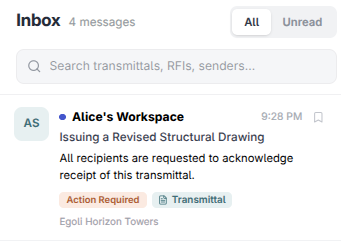
- 2
Open the transmittal and review the attached documents. You can download any of them to your device.
- 3
Click Respond.
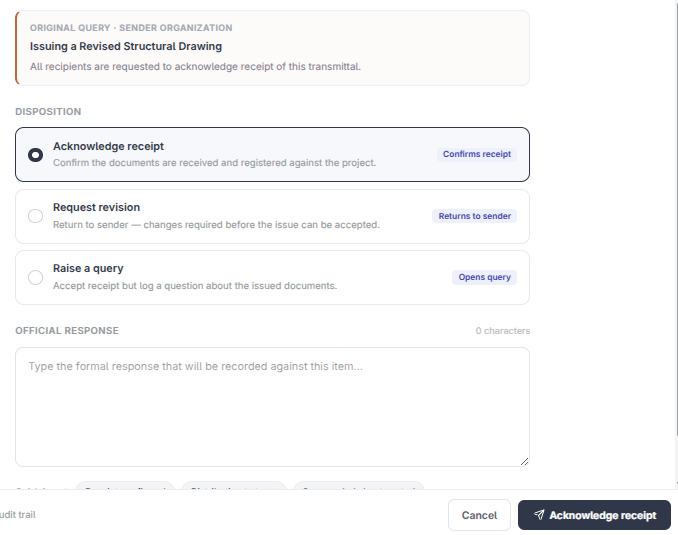
- 4
Choose your response. Add a note if the sender needs detail, then send.
The three responses
- Acknowledge confirms you received the documents. Use it when everything is in order.
- Request revision tells the sender something needs to change before you can use what they sent.
- Raise query asks a question without accepting or rejecting the issue.
No fluxems account? No problem
If you received the transmittal by email without a fluxems account, use the secure link in the email. It opens the same documents and the same response options, and your response is recorded just the same.
See it on the platform
Document controlWas this page helpful?
Need help? Contact support.
See what shipped in the changelog.
Questions about pricing? Talk to sales.
Something down? Check the platform status.
Found a bug in the product? Report an issue.
Missing something? Request a feature.