
Browse the Help Center
Set a revision as current
Make a revision the one the project builds from, from the register row menu or the Versions tab, and see what happens to the old one.
1 min read
Current marks the one revision of a document the project builds from. Setting a revision as current is how the whole team moves to the new issue at the same moment.
Set it from the register
- 1
Open your project, then Files, then Document register.
- 2
Find the document, open its row menu, and click Set as current.
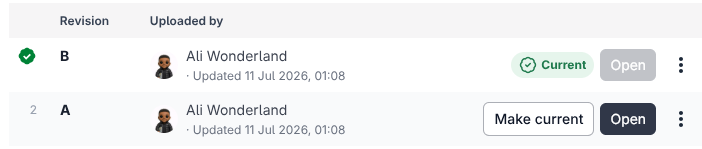
- 3
The Current column flips to Yes for that revision. You're done.

Or from the document itself
Open the document, go to the Versions tab, and click Set as current on the revision you want. This view is better when a document has several revisions and you want to compare before you choose.
What happens to the old revision
The previously current revision is marked Superseded. It stays readable in history: turn on Show all document revisions in the register or open the Versions tab to find it.
Setting a revision as current changes what the whole project builds from. If the revision is still under review, wait for the approval before you switch.
See it on the platform
Document controlWas this page helpful?
Need help? Contact support.
See what shipped in the changelog.
Questions about pricing? Talk to sales.
Something down? Check the platform status.
Found a bug in the product? Report an issue.
Missing something? Request a feature.