
Browse the Help Center
Upload a new revision
Add the next version of a document from its details page, let auto-versioning number it, and set it as current.
1 min read
When a document changes, you upload the new file against the same document. It becomes the next version, the history stays intact, and the reference never changes.
Upload the new file
- 1
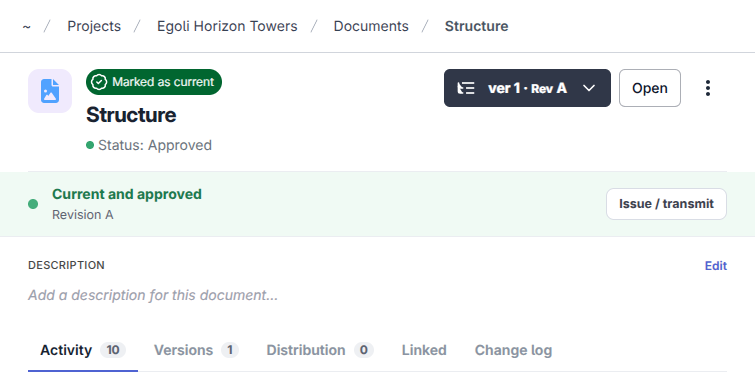
Open your project, go to Files, then Document register, and click the document to open its details page.
- 2
Open the Versions tab and click Upload new.

- 3
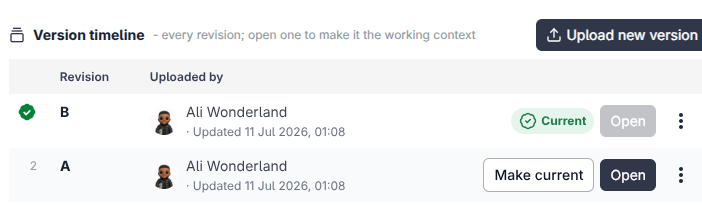
Drop the file in. It becomes the next version, and auto-versioning numbers it for you.
- 4
When the new revision is ready to build from, use Set as current so the whole project moves to it.
Upload new greyed out?
Versioning must be unlocked to add a version. If the document is locked, use Unlock versioning from the register row menu, or ask someone with permission to.
Tip
Uploading a new revision and making it current are separate steps on purpose. You can upload early, run the review, and only switch the project over when it passes.
See it on the platform
Document controlWas this page helpful?
Need help? Contact support.
See what shipped in the changelog.
Questions about pricing? Talk to sales.
Something down? Check the platform status.
Found a bug in the product? Report an issue.
Missing something? Request a feature.