
Browse the Help Center
Create your first project
Start a project from a template, set its visibility, and pick your disciplines.
1 min read
A project is where a job lives: its documents, transmittals, RFIs, milestones, and members. Creating one takes about a minute.
Create the project
- 1
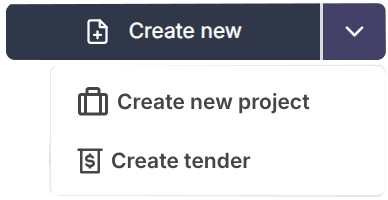
In the sidebar, click Create new, then Create new project.
- 2
Pick a template. Templates preset the folder layout and settings, and you can change everything later.
- 3
Give the project a name, and set its visibility: Private projects are visible only to members you add, Public projects are visible to the whole workspace.
- 4
Choose the disciplines the project needs (for example Structural or Electrical) and any teams to add from the start.
- 5
Click create. You land on the project overview, and the sidebar switches to project sections.

Tip
Set up a project the way your company likes it once, then save it as a template so every new project starts right.
What a project contains
- Project with Overview and Activity, plus Alerts.
- Plan with Work items and Milestones.
- Transmittals and RFIs registers.
- Files with the Document register, Photos, and Folder templates.
- Manage with Members and Labels, and Settings if you have permission.
Was this page helpful?
Need help? Contact support.
See what shipped in the changelog.
Questions about pricing? Talk to sales.
Something down? Check the platform status.
Found a bug in the product? Report an issue.
Missing something? Request a feature.