
Browse the Help Center
Upload your first documents
Get documents into the workspace Docs area or register them in a project, with the metadata that matters.
1 min read
There are two places a document can live: the workspace Docs area for general files, and a project Document register for controlled project documents. Start wherever fits.
Upload to workspace Docs
- 1
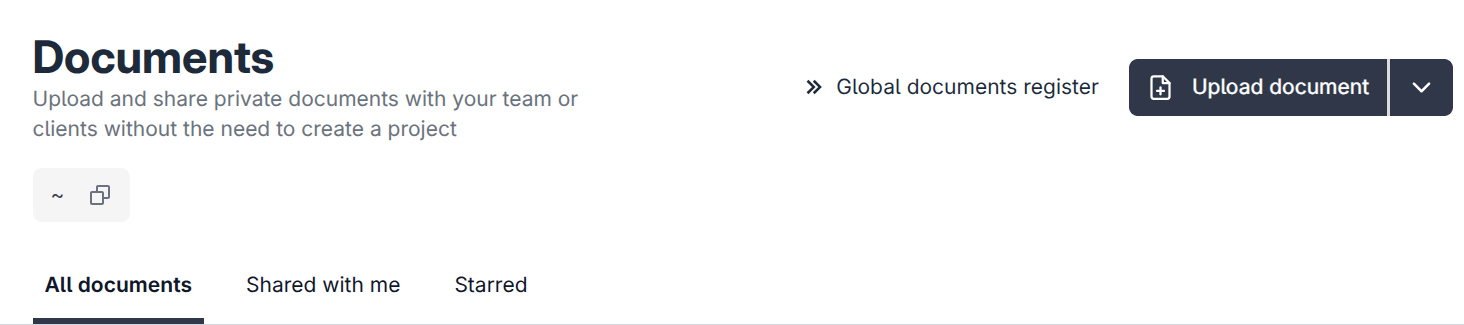
In the sidebar, open Docs.
- 2
Click Upload document, then drop your files in or browse for them.
- 3
Use Create folder to keep things organised, and star anything you want quick access to.
Register documents in a project
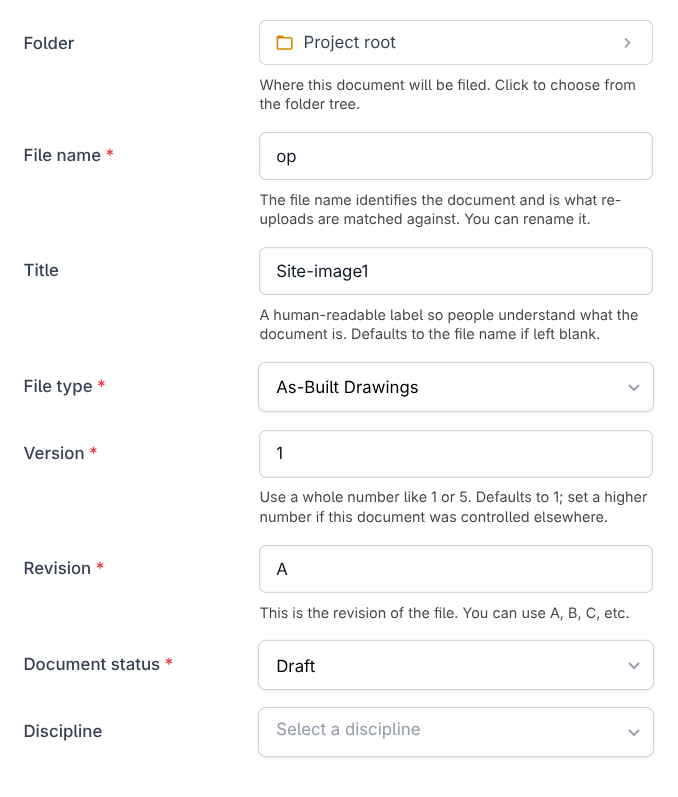
Project documents go through the register so they carry a Document Reference, a Discipline, and a revision from day one.
- 1
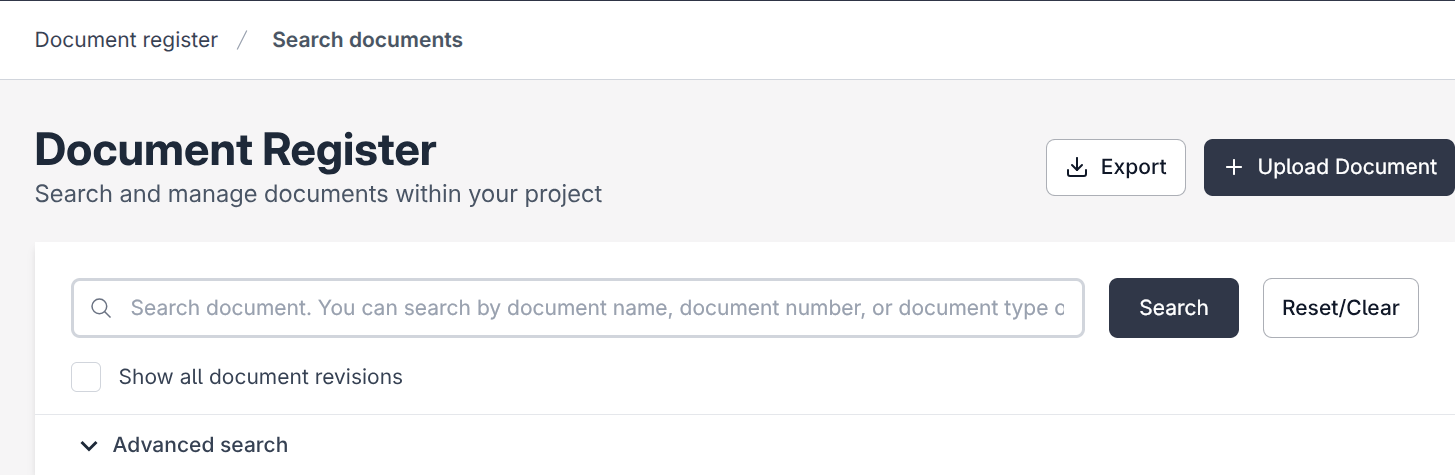
Open your project, then go to Files, then Document register.
- 2
Click Upload Document and drop in your files.
- 3
Fill in the details for each document: title, discipline, and status. fluxems builds the Document Reference and starts the revision history.
Tip
The register accepts many files at once. Upload the whole drawing set in one go and fill the details in the same screen.
Was this page helpful?
Need help? Contact support.
See what shipped in the changelog.
Questions about pricing? Talk to sales.
Something down? Check the platform status.
Found a bug in the product? Report an issue.
Missing something? Request a feature.