
Browse the Help Center
The document register
One list of every document in a project: what each column means, how to see every revision, and where the Global Document Register fits in.
2 min read
The Document register is the single list of every document in a project: its reference, its revision, its status, and whether it is current. When someone asks which drawing to build from, this is where you look.
Open the register
- 1
In the sidebar, open Projects and pick your project.
- 2
Go to Files, then Document register.
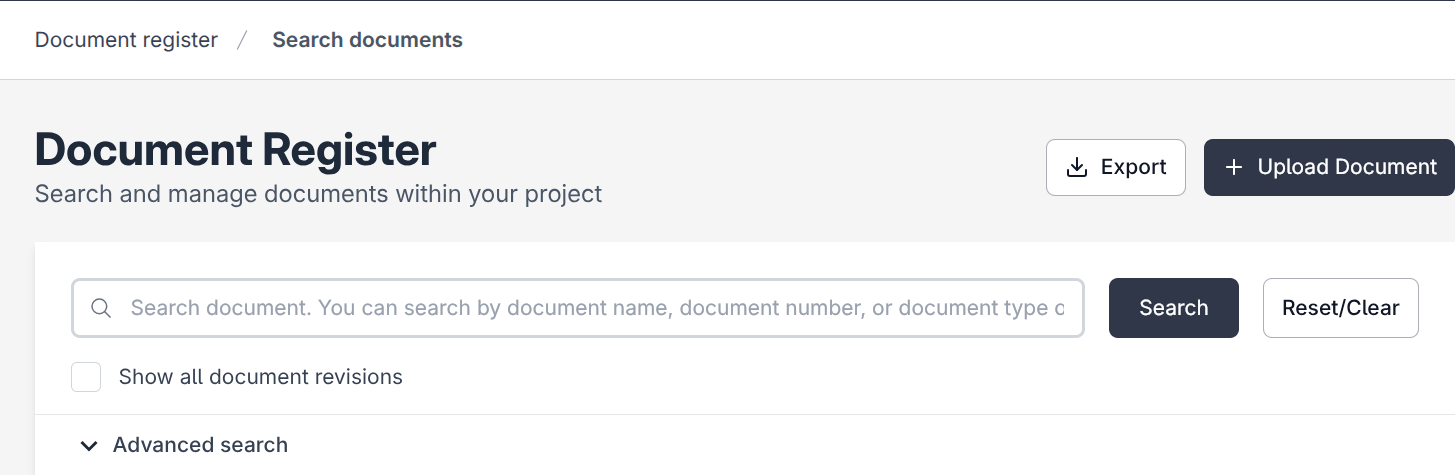
The register header holds **Upload Document** and **Export**.
What the columns mean
| Column | What it shows |
|---|---|
| File name | The name of the uploaded file. |
| Document Reference | The unique identity of the document: discipline code plus sequence. |
| Title | The human-readable title. Titles may repeat; the reference never does. |
| Discipline | The discipline the document belongs to, such as Structural or Electrical. |
| Version | Which upload this row is (v1, v2). |
| Revision | The label the version carries (A, B, C). |
| Suitability | What the revision is fit for: a code plus its WIP or PUBLISHED stage. |
| Current | Yes or No. Yes means this is the revision the project builds from. |
| Status | Where the document sits in its lifecycle, such as Draft or Approved. |
See every revision, not just the latest
By default the register shows one row per document. Turn on Show all document revisions to see every revision as its own row, superseded ones included. That view answers "what did we issue in March?" without leaving the register.

Search, Advanced search, and Export
Type in the search box to filter by name, number, or type. Open Advanced search for precise filters like discipline, status, and suitability. Click Export in the register header to download the register as a file you can share or file away.
Project register vs the Global Document Register
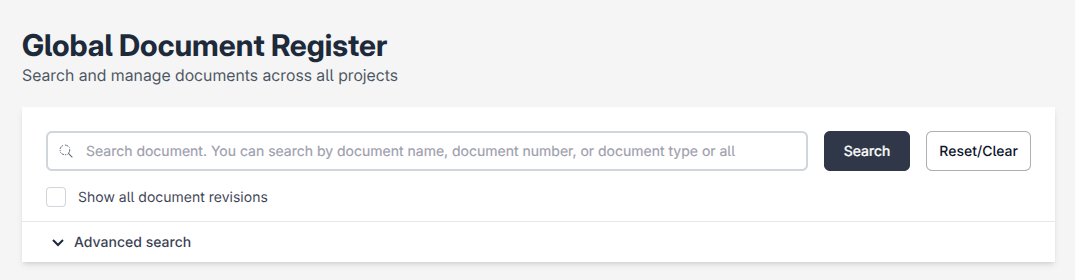
The project register shows one project. The Global Document Register shows every document across all your projects in one list: open Docs in the sidebar and follow the Global documents register link. Same columns, wider view.
Tip
Use the project register for day-to-day work and the global register when you need to find a document but cannot remember which project it lives in.
See it on the platform
Document controlWas this page helpful?
Need help? Contact support.
See what shipped in the changelog.
Questions about pricing? Talk to sales.
Something down? Check the platform status.
Found a bug in the product? Report an issue.
Missing something? Request a feature.